Documentation / Reference
Workflow overview
Coordinate work that takes longer than one request, such as approvals, waiting periods and tasks for people, in a durable process that runs inside your application.
Applies to Glyphox 1.0.10
A workflow is a process whose steps can wait: for a person to complete a task, for a timer, for a signal or for an agent. Each time a workflow starts, the application creates an instance and stores it in the database. An instance that waits for days holds no request open, and after a restart it resumes from where it stopped.
Workflow or action
| Use | When the process |
|---|---|
| An action | Finishes within one request, with no wait. For example, save a ticket and set its due date. |
| A workflow | Waits for a person, a decision or a time. For example, escalate a ticket, wait for a manager to approve it and notify the customer. |
A workflow does its work through actions. Keep the logic of each step in an action, and use the workflow for the order of the steps, the waits and the people involved.
Build a workflow
In the Solution tree, select New Workflow beside the Workflows group, or run Glyphox: New Workflow. The workflow opens in the workflow editor with a Start node and an End node. Drag nodes from the toolbox onto the canvas and connect their handles. Select a node to edit it in Properties. The article Workflow nodes, in this section, lists every node.
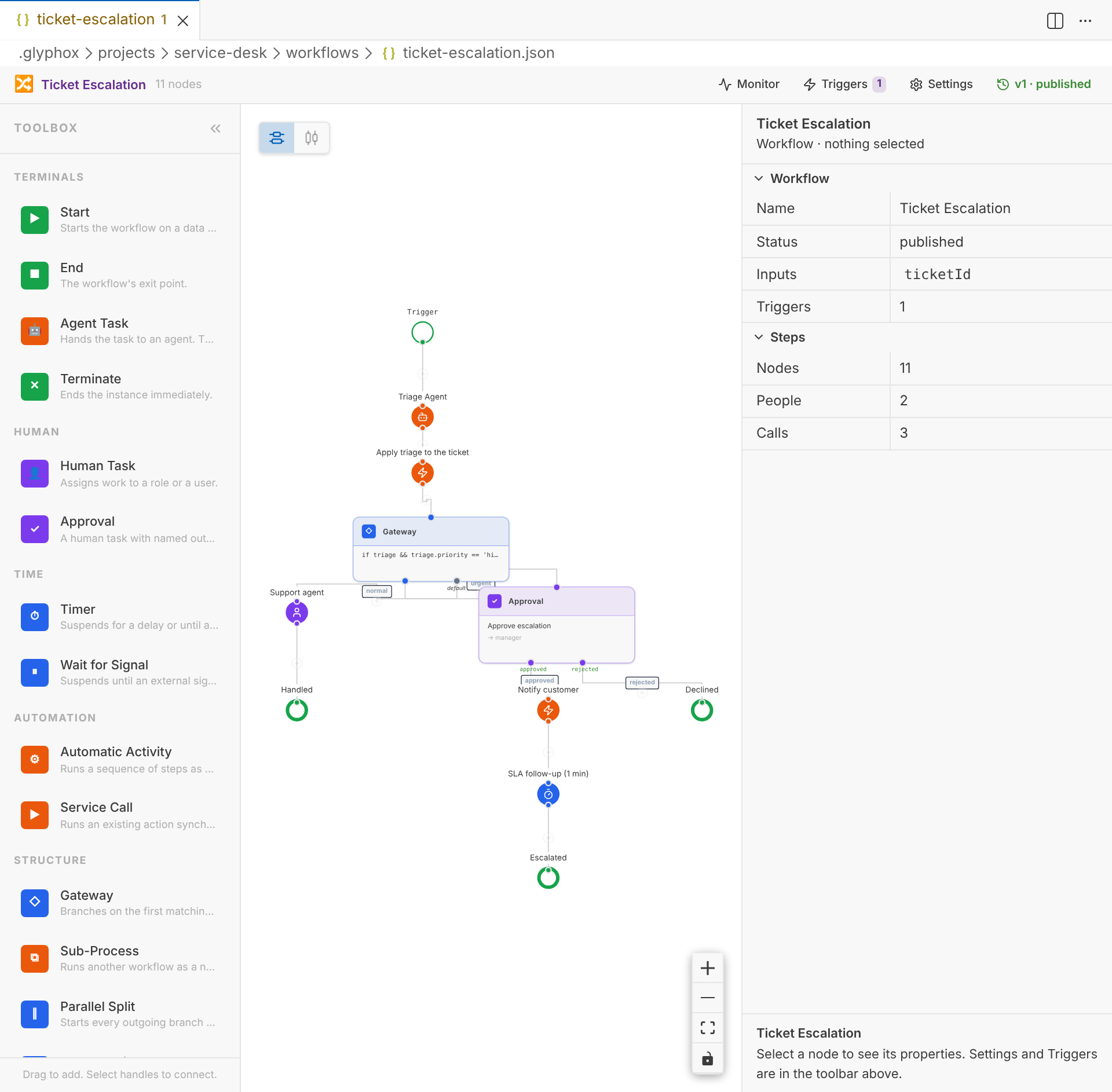
The editor's toolbar holds Monitor, Triggers, Settings and the version menu.
What starts a workflow
Public URLs, schedules and data events are added in the Triggers menu, and each can be turned on or off. Every trigger enters the workflow at its Start node. The article Start a workflow from outside the application, under How-to guides, describes public URLs and schedules.
Data in an instance
An instance starts with the workflow's inputs, which Properties lists when no node is selected. A step that produces a value stores it under the name in its Output variable, and the values a person enters in a task's form fields are added when the task is completed. Later steps read these values in expressions, such as {{triage.priority}}.
People, time and escalation
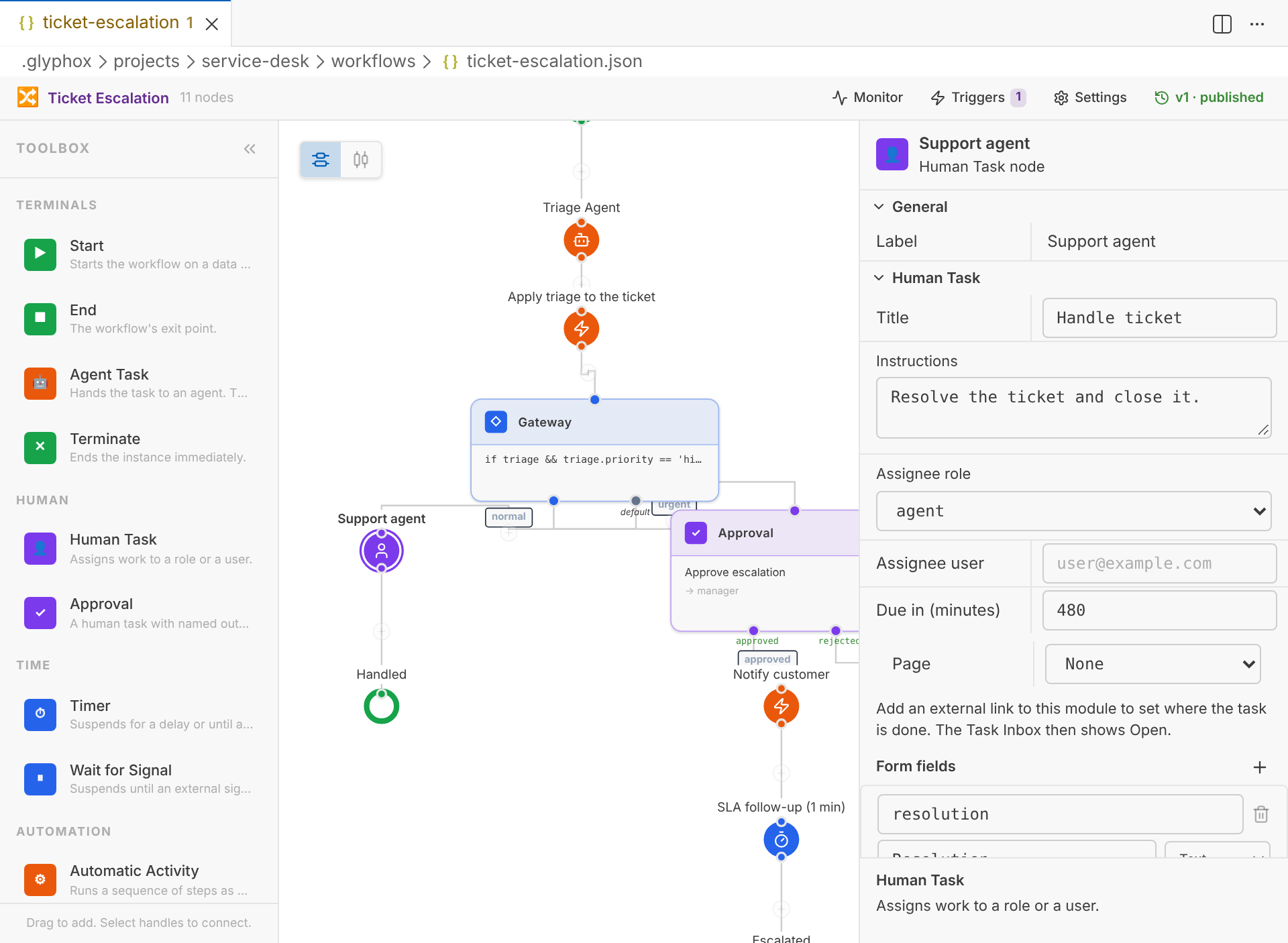
A Human Task or an Approval is assigned to a role, or to one user. It appears in the application's Task Inbox for everyone with that role, and any of them can complete it. An Approval shows a button for each of its outcomes, and the workflow continues along the connection of the outcome chosen.
Due in (minutes) sets when a task becomes overdue. The toolbar's Settings holds Instance SLA (minutes), which flags an instance as overdue that many minutes after it starts, and the Escalation rules: after a number of minutes overdue, a rule runs an action, reassigns the task to another role, or both. Without a rule, an overdue task does not escalate.
A Timer waits for a delay or until a time, and Wait for Signal waits until the instance receives a named signal.
Agents in a workflow
An Agent Task hands a step to an agent. The instance waits while the agent runs, including while the run waits for an approval, and continues with the agent's result in the step's output variable. The Agents overview, in this section, describes agents, and Add an AI step with sign-off, under How-to guides, shows an agent's proposal followed by a person's approval.
Run and monitor
Press F5 to run the solution. While it runs, the editor's Monitor lists the workflow's instances. Select one to see its variables and its audit trail. A breakpoint on a workflow node, set with the dot on the node's left edge, pauses the workflow at that step in the VS Code debugger.
In the Console, Workflows lists every instance with its status and, for a waiting instance, when it resumes. Trail opens an instance's audit trail, and Cancel stops a running instance and withdraws its open tasks. Tasks lists the human tasks with their assignees and due times.
An instance continues on the definition it started with, so a change to the workflow applies to the instances that start after it.
Example: Ticket Escalation
The Acme Service Desk sample includes the Ticket Escalation workflow. It starts when a ticket is escalated, runs the Triage Agent and applies its result to the ticket. A Gateway then sends a high-priority ticket to a manager for approval, with a due time of four hours. An approved escalation runs the Notify customer step and starts a follow-up timer, and a rejected one ends as declined. Every other ticket becomes a task for the agent role. Open it from the Workflows group in the Solution tree.
If a step fails, see Troubleshoot the first run or contact support.