Documentation / How-to guides
Use your own coding agent or IDE
Configure an external coding agent or IDE to create and modify your application with the Assistant's tools.
Applies to Glyphox 1.0.10
Before you begin
- A solution open in VS Code from a folder on this computer, with the Glyphox extension installed and signed in.
- A coding agent or IDE that Glyphox connects. Step 2 lists each one.
In this article, coding agent also means the agent built into an IDE such as Cursor, Kiro or Zed.
An external coding agent uses the same tools as the Assistant. It modifies the application model and does not edit generated source code, so each change can be reviewed in the designers, is checked against the same validation rules and follows the same requirements, design and approval steps. The tools are available while the workspace is open in VS Code.
Step 1: Open the workspace in VS Code
Open the folder that holds your solution. Glyphox detects the coding agents and IDEs in use on this computer and connects each one to the workspace. A coding agent or IDE counts as in use when its folder exists in the workspace or in your home folder.
When a coding agent is connected for the first time, a notification names it and states what remains to be done in that coding agent. Select Show Connection to open the connection details.
GitHub Copilot needs no connection. In agent mode it has Glyphox's tools whenever the extension is active.
To connect a coding agent that was not detected, open the … menu in the Solution tree's title bar and select Connect Coding Agents…. The list names every coding agent Glyphox can connect, with those in use already selected.
Step 2: Complete the connection in the coding agent
Glyphox connects the coding agents and IDEs in this table automatically. Each one decides when it reads a new connection and whether it trusts the folder, and Glyphox does not change those decisions. Complete the action for your coding agent.
| Coding agent or IDE | Where Glyphox adds its entry, and what remains for you to do |
|---|---|
| Claude Code | Entry in .mcp.json. Start a new conversation, or run /mcp and select Reconnect. |
| Codex | Entry in .codex/config.toml. Trust the project when Codex asks, then restart Codex. |
| Cursor | Entry in .cursor/mcp.json. Turn on glyphox in Cursor's settings, under MCP. |
| Gemini CLI | Entry in .gemini/settings.json. Run gemini trust, then /mcp reload. |
| GitHub Copilot | Provided by VS Code, with no entry to add. No action is required. Use agent mode in the Chat view. |
| JetBrains Junie | Entry in .junie/mcp/mcp.json. Run /mcp and select Reconnect. |
| Kiro | Entry in .kiro/settings/mcp.json. No action is required. |
| opencode | Entry in opencode.json. Restart opencode. |
| Zed | Entry in .zed/settings.json. Trust the folder, using the ! in Zed's title bar. |
Each entry is added to a project configuration file in the workspace. GitHub Copilot CLI reads the same .mcp.json file as Claude Code.
Step 3: Check the connection
Open the coding agent's list of MCP servers. A server named glyphox is listed with its tools. In Claude Code, run /mcp. In VS Code, run MCP: List Servers, which lists Glyphox.
A server that lists a single tool, glyphox_status, has not reached the workspace: the folder is not open in VS Code, or it does not hold a solution yet. Open the workspace in VS Code. If the full list of tools does not follow, reconnect the coding agent.
Step 4: Ask the coding agent for a change
Describe the change as you would describe it to the Assistant.
Add a priority to every ticket.Following Glyphox's instructions, the coding agent reads the application, records the requirements for the change and, once you approve them, builds it with Glyphox's tools. The requirements, the design and the task plan are the same documents the Assistant writes, and they appear under Plans in the Solution tree.
In Manual mode, an approval is your action. When the coding agent asks for one, VS Code asks you to confirm it, and nothing is approved until you do.
While a plan is in progress, a change is held to the approved design. A change that adds a module or a reference which the design does not declare is refused, and the answer names the document to amend.
For a coding agent connected through the Model Context Protocol, a request that is not answered within 90 seconds writes nothing, and the coding agent can ask again. When the Assistant's mode is Auto, the coding agent may approve a stage and answer open questions itself, and the record names the agent.
Review the result as you review any change: the designers show it, the Problems view lists anything that is invalid, and git diff shows which assets changed.
What Glyphox writes to your repository
Glyphox gives a coding agent what it needs to work on your application, and changes nothing else. Its instructions direct a coding agent to change the model through the tools and never to edit the files under .glyphox/ directly.
AGENTS.Instructions for coding agents: what the model is, how to change it and the order of work. The file is yours to edit. Glyphox maintains only the block it marks as its own..Glyphox's standing rules for coding agents. Glyphox keeps this file current..A description of your application, with its modules, tables, roles and public actions, kept current as the model changes, and four guides to building with Glyphox. AGENTS.md refers every coding agent to them.glyphox. Every other entry in the file is left as it is, and a file that cannot be read safely is not changed..The connector that a coding agent starts. It is excluded from Git.CLAUDE., .For Claude Code only: references to the two instruction files, permission to use Glyphox's read-only tools without a prompt, and a rule against editing the model's files directly. Changes remain behind Claude Code's own permission prompt.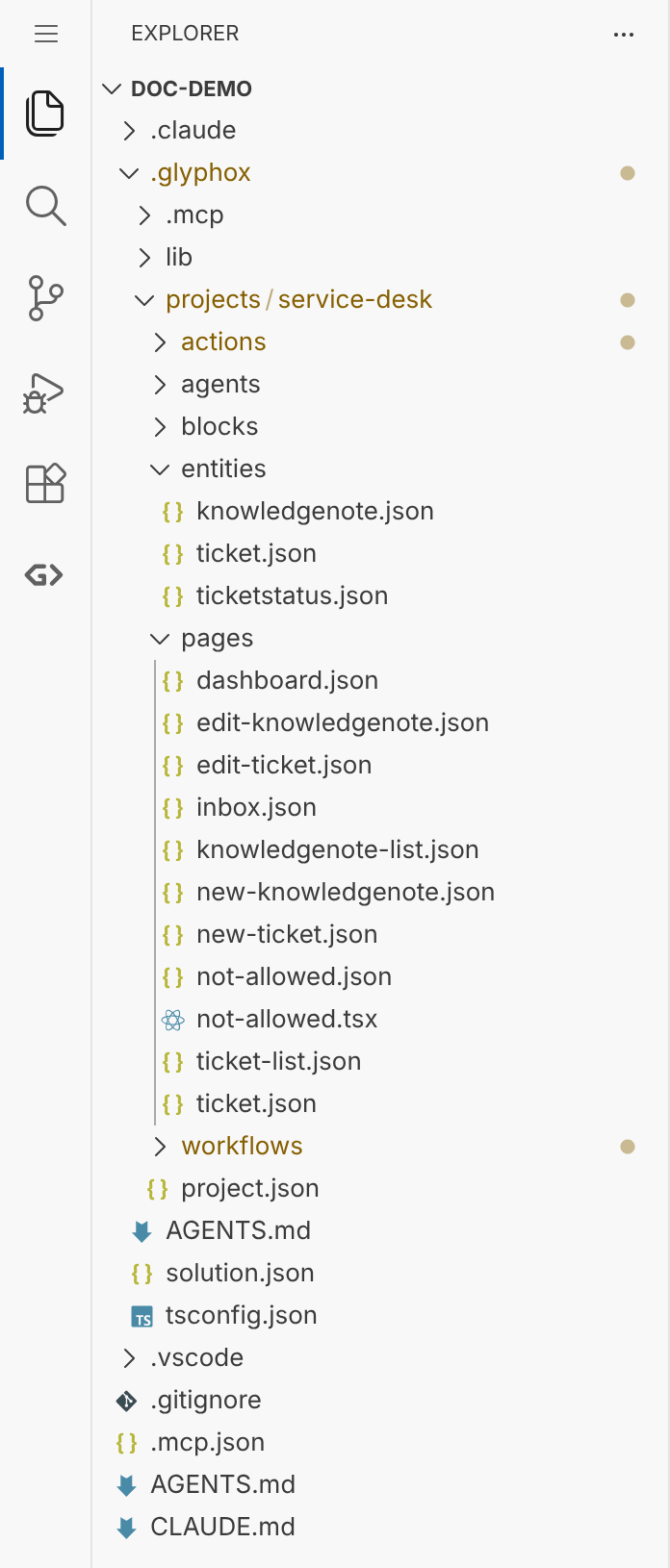
The screenshot shows a workspace on a computer where Claude Code is in use. Glyphox does not change a coding agent's personal settings or its decision to trust a folder. The one exception is its own server's approval for Claude Code, which is stored for you alone in a file excluded from Git.
Settings
Two settings control the connection. Both are in VS Code's Settings and are on by default. Search for glyphox to find them.
glyphox.Connects the coding agents and IDEs in use on this computer when a workspace is opened.glyphox.Serves Glyphox's tools to coding agents and to VS Code. The tools are served on this computer only.Turn it off
To stop Glyphox from connecting coding agents, clear glyphox.mcp.connectAgents. Entries that were already written remain. To disconnect a coding agent, remove the glyphox entry from its configuration file.
To stop serving the tools over the Model Context Protocol, clear glyphox.mcp.expose and reload the window. GitHub Copilot continues to receive the tools from VS Code while the extension is enabled.
Alternative: connect a coding agent by hand
A tool whose configuration is personal rather than per project, such as Windsurf or Cline, is not changed by Glyphox. Run Glyphox: Show MCP Connection, which opens the connection details with the line to add to that tool's configuration. The details include an access token for the current session, so do not share them.
Claude Code can also be connected from a terminal, with the path that Show MCP Connection gives:
$ claude mcp add glyphox -- node "<path>/mcp-stdio.js"Glyphox: Write Agent Instructions writes the instruction files again. It asks before it replaces a file that exists.
If a step fails, see Troubleshoot the first run or contact support.