Documentation / Reference
Logic flows and actions
Write business logic as actions: flows that run in the browser or on the server, called from pages, other actions, workflows, agents and schedules.
Applies to Glyphox 1.0.10
An action is a named piece of business logic, drawn as a flow in the action editor. It starts at Start, finishes at End, and each node between them performs one step. Because the action is part of the model, a change to it is reviewed in a pull request in the same way as any other change.
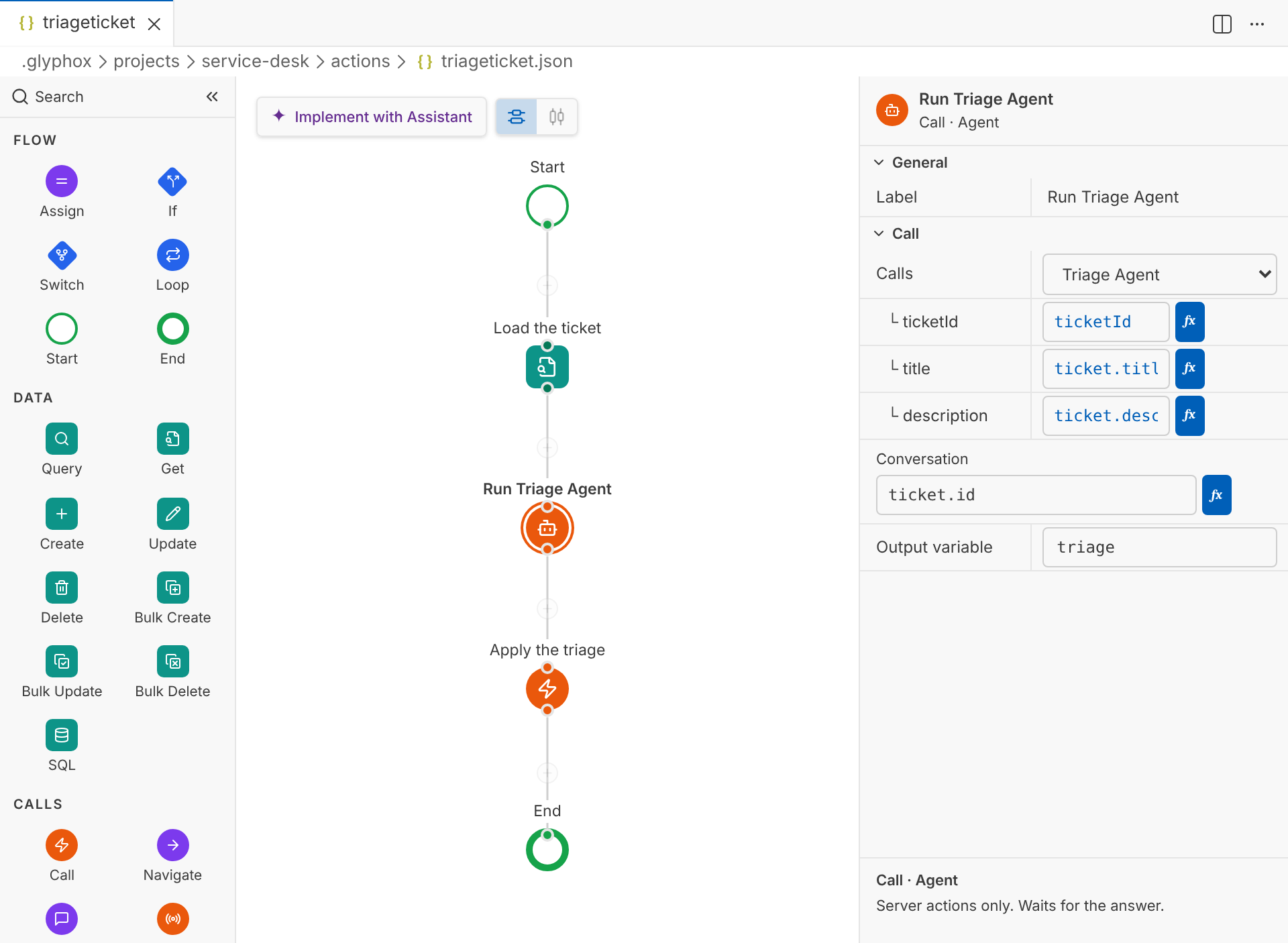
The canvas
Lines connect the steps. A line leaves a step on the side that faces the step it goes to, bends round any step in its way and ends in an arrowhead at its target. The True and False lines of an If and the cases of a Switch each leave on the side of their own target, with their captions, and they follow a step as you drag it.
A line that returns to an earlier step runs in a lane of its own beside the flow. The line under the pointer and the selected line are highlighted.
Arrange top to bottom and Arrange left to right lay the flow out again. The main path stays straight, and the body of a loop is placed beside it. The workflow editor draws and arranges its lines in the same way.
Edit on the canvas
Right-click a step, or a selection of steps, to open a menu with Cut, Copy, Paste, Duplicate and Delete. On an empty area of the canvas the menu offers Paste and Select All, and on a line it offers Delete. The same commands have their usual keyboard shortcuts.
Pasted steps arrive where you right-clicked, with the lines between them and without a line to the rest of the flow. Steps can be pasted into another action, including an action of another module. The Start of a flow cannot be cut, copied, duplicated or deleted. When one step on a path is deleted, the line is joined around it.
Drag on an empty area of the canvas to draw a selection box, which selects every step it touches. Hold Ctrl, or Cmd on a Mac, and select a step to add it to the selection or to remove it from the selection. To move the canvas, scroll, drag with the middle mouse button, or hold Space and drag. To zoom, hold Ctrl or Cmd and scroll, or pinch.
A step has one line out, and drawing a second line from a step replaces the first. A step with branches keeps one line for each: True and False of an If, each case of a Switch, and the body of a Loop and what follows it. The Problems view reports a step that has two lines out of the same point, which a flow saved by an earlier version may contain. Remove one of the two lines.
The workflow editor has the same menu and the same gestures. In a workflow, a Gateway keeps one line for each condition and an Approval one for each outcome, and a Parallel Split starts every line that is drawn from it.
Client actions and server actions
Each action has a Scope, which is set in Properties when no node is selected.
| Scope | Where it runs, and what it is for |
|---|---|
| client | In the browser, on the page that calls it. A client action responds to the person on the page: it goes to another page, shows a message or calls a server action. |
| server | In the module's API. A server action queries and writes records, writes files, sends email and calls agents, integrations and other modules. A record, a file or an email is written only by a server action. |
A new action starts as a client action. An action created in a library module starts as a public server action.
Some nodes belong to one scope. Run Agent, the spreadsheet, PDF, email and file nodes and Complete Task run only in server actions. Navigate and Message take effect only when a page calls the action in the browser.
A client action runs in the browser, where a person can alter it. A rule that must always hold, such as which roles may change a record, belongs in a server action or in the table's Access section.
Inputs, outputs and variables
result.The type of a parameter, a variable or the return value is a basic type, a table or a structure. A structure is a named set of typed fields. The article Define a structure, under How-to guides, describes it.
A node's properties are expressions over the values in scope, such as {{ticket.title}}. Each node declares its output variable, so the editor knows what is in scope at every step and reports a problem before you run the action.
Where actions are listed
Glyphox: New Page Action.Glyphox: New Component Action.Step 1: Create an action
In the Solution tree, select New Action beside the Logic group, or run Glyphox: New Action. Enter a name. Glyphox creates the action and opens it in the action editor.
Set its Scope and add its parameters in Properties. Drag nodes from the toolbox onto the canvas and connect them. The article Action nodes, in this section, lists every node.
How an action is called
Who may call it sets which callers may run a server action over the API: the module default, Anyone, Any signed-in user or Only these roles…. It applies to the API only. Workflows, triggers and the module's own actions are not checked against it.
Errors and the standard error handling
A Raise Error step stops the action with an exception. Its Exception type is UserException, SystemException, SecurityException or a custom name. A Catch Error step handles the exceptions of the type selected in Catches exception type. AllExceptions (catch all) handles every type, and SystemException also handles SecurityException and CommunicationException. An exception that no step catches passes to the module's error handling.
Every new web module has a client action named OnError. In the Solution tree, the module's Application group shows it on the row On error in the browser. It runs when an action fails, a call to the server fails or a page fails while it is drawn, and it has three branches.
OnError is an ordinary action, so you change what a person sees by changing its steps. Reset to Standard…, in the row's context menu, restores the standard steps after asking for confirmation. On a row that runs nothing, New Application Action creates the action.
To refuse a person from your own logic, add a Raise Error step with the exception type SecurityException. From a server action, the caller receives a 403 response, and the web application treats it as any other refusal: with the standard error handling, a signed-in person is taken to the Not Allowed page.
Debug an action
Press F5 to run the solution with the debugger attached. To set a breakpoint, select the dot on the left edge of a node in a server action, or select the node and press F9. When a request reaches the node, VS Code pauses with the call stack and the variables available for inspection.
What is exported
The action file in the model is the source of truth. Export and Publish generate code from it each time, so a change is made in the action rather than in the generated code.
If a step fails, see Troubleshoot the first run or contact support.