Documentation / How-to guides
Query data
Filter, sort, total and group records with the Query step, including related tables, calculated columns and tables of other modules.
Applies to Glyphox 1.0.10
Before you begin
- A module with at least one table. The article Add a table and generate its pages, under How-to guides, describes how to add one.
A Query step reads records in an action. You build it in the query designer, which shows the results over your sample records as you work, and the generated server runs it as SQL in the module's database.
Step 1: Open the query designer
In an action, add a Query step from the Data group of the toolbox, or drag a table from the Solution tree onto the canvas. In the step's properties, select Open designer.
The designer has four tabs: Sources, Filters, Sorting and Test values. The results fill the rest of the screen, so every change is visible at once. Select Done to return to the action.
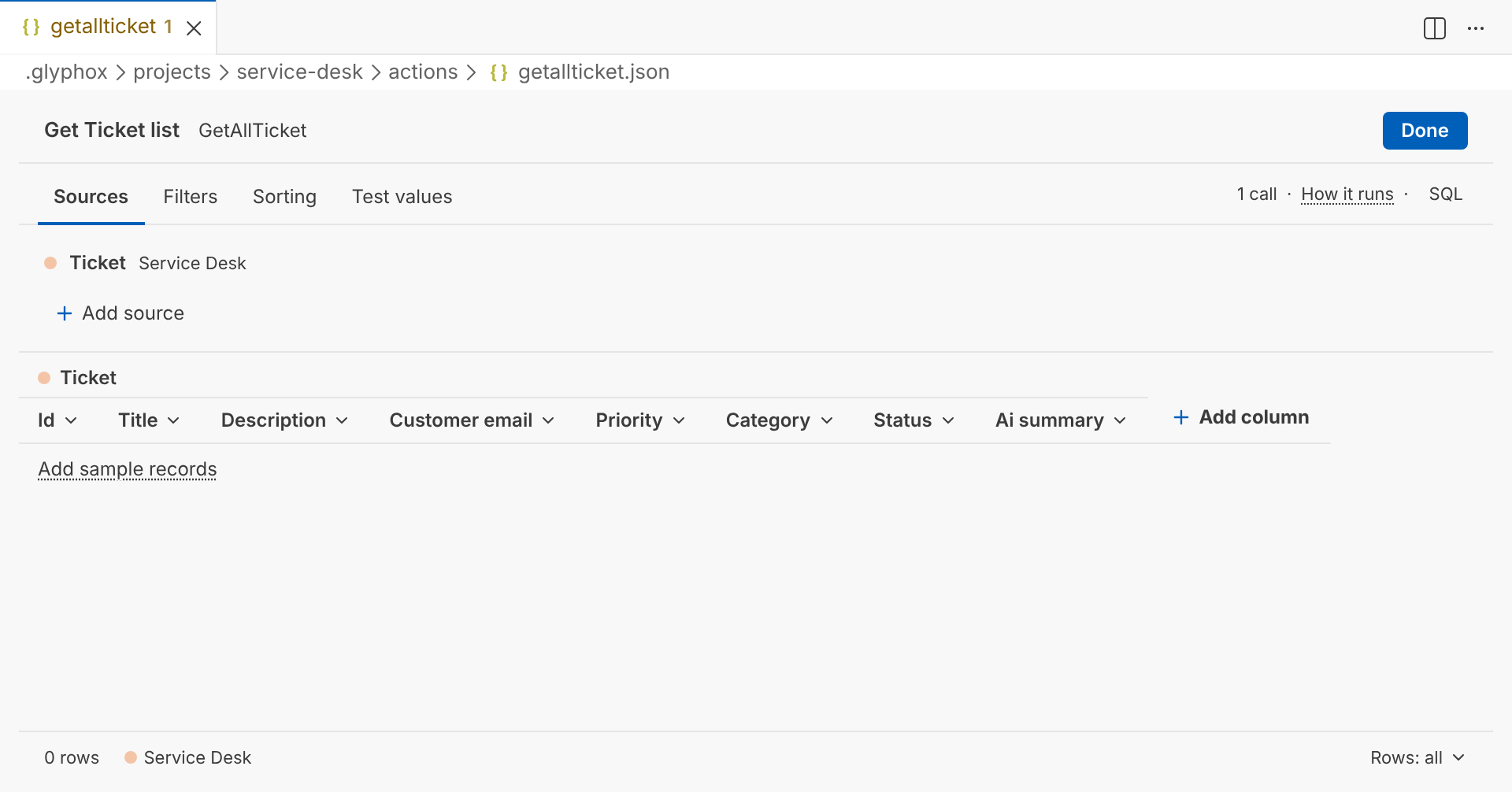
Step 2: Choose the source
On Sources, select Add source and select a table. Its columns become the results grid. A table with no rows shows Add sample records, which opens the table's editor so that you can add rows to test with.
To include a related table, select Add source again. Tables connected by a relationship are listed under Linked to, and a table under Not linked is joined by matching a column. A join is a Left join by default, which keeps records that have no match. Select Inner join to keep only matched records.
Where each record has many related records, such as the lines of an invoice, the designer asks whether to show one row per invoice, with totals of its lines, or one row per line.
Step 3: Filter the records
On Filters, select Add filter and choose a column, a test and a value. The tests include is, is not, contains, starts with, is greater than, is between, is in… and is empty. For a date, they read is before and is after.
Combine conditions with All of these or Any of these, and nest a group with All of… or Any of…. Has related keeps records that have related records, such as tickets with at least one note, and its Has no form keeps those without. Such a filter can carry conditions of its own.
A value can be an expression, such as an input of the action. Test values lists the names the query reads, so that you can try values against the results.
Step 4: Sort and page the results
Each column's header is a menu: Sort ascending, Sort descending, Group by, the totals, Filter… and Hide. A query has one sort, which Sorting also shows.
Rows, in the footer, sets Limit and Offset. Each takes a number or an expression, so a list page can pass its page size and position.
Step 5: Total and group
Select Group by on a column for one row per value, then select a total on another column: Sum, Average, Min, Max, Count or Count distinct, which counts different values. Without a group, the totals form one row for all the records. Double-click a total's header to rename it.
Once the query has totals, Filters shows After grouping, where a condition applies to the totals, for example vendors with more than ten open invoices.
Step 6: Add a calculated column
Select Add column, then Calculated column…. Name the column and write its calculation over the row's columns. Insert a function lists the functions the database computes: Upper, Lower, Trim, Length, Concat, Round, Abs, Coalesce, If, Year, Month, Day, DateDiff, DateAdd, Today and Now, together with arithmetic and comparisons.
A calculated column can be filtered, sorted, grouped and totalled like any other column.
Step 7: Keep the first rows of each group
In Rows, Top and per keep the first rows of each group under the query's sort, for example the largest invoice of each vendor. This requires a sort and applies to records, not to totals.
Read across modules and over lists
A query can read a public table of a module that this module references, and can add tables of up to three other modules as sources. Where a table has a relationship to another module's table or to the User table, the related table can be added as a source through that relationship. The legend marks each module's columns, and How it runs states where each part runs. Each module answers its part under its own table rules.
Where rows of two modules must be combined, they are merged in memory, up to 5,000 rows. Memory limit, in Rows, raises that limit for one query.
A query can also start from a list, such as the result of an earlier step. Select A list… when you choose the source.
See the SQL
SQL, at the right of the tabs, shows the statement the module's database runs. In a server action, Open as SQL step adds that statement to the action as an SQL step, which you can then edit.
Server and client actions
Related tables, totals, calculated columns, related-record filters, the first rows per group and tables of other modules are computed by the database, so they are available in server actions. In a client action, a query reads the module's own table with simple conditions, sorting and paging, or reads a list.
Change many records at once
Three steps in the Data group write a whole set of records without a round trip for each one. They are available in server actions.
| Step | What it does |
|---|---|
| Bulk Create | Creates a record for each item of a list and returns the created records with their keys. |
| Bulk Update | Sets the records that match a filter to the same values and returns how many changed, or changes each record of a list by its key and returns the changed records. |
| Bulk Delete | Deletes the records that match a filter, or those whose keys are in a list, and returns how many were deleted. |
A Bulk Update or Bulk Delete without a filter is refused unless you select Every record, so a missing filter never changes a whole table by accident.
If a step fails, see Troubleshoot the first run or contact support.