Documentation / Getting started
Install and sign in
Install the extension in VS Code and sign in with your Glyphox account.
Applies to Glyphox 1.0.10
Before you begin
- VS Code 1.104 or later.
- Node.js 24.22.1 or later. Node.js runs and builds your application, not the editor.
- A Glyphox account. Sign up on this website if you do not have one.
Step 1: Install the extension
In VS Code, open the Extensions view, search for Glyphox and select Install.
Step 2: Sign in
Select the Glyphox icon in the activity bar, then select Sign in. Your browser opens glyphox.com.
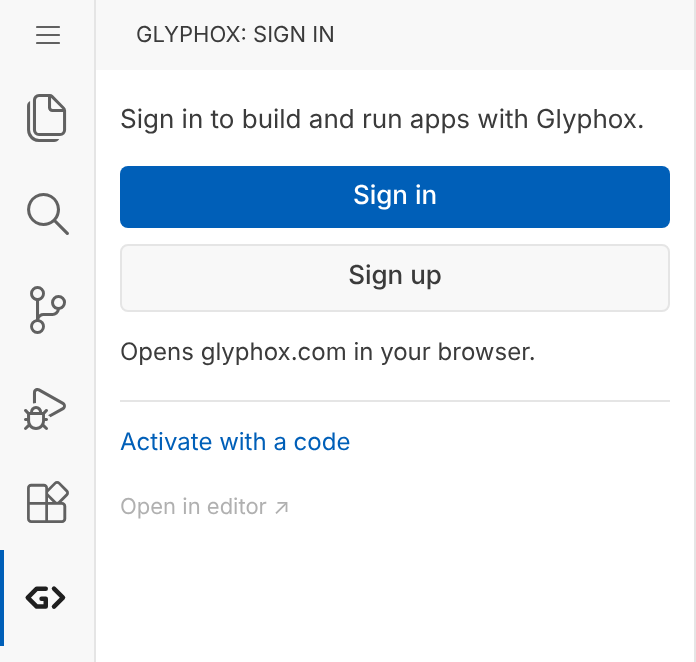
In the browser, sign in and select Yes, sign in when the page asks "Sign in to Glyphox in VS Code?". Return to VS Code, which completes the sign-in on this computer.
No sign-in information is written to your workspace. A sign-in is valid for 30 days and is not renewed automatically.
What signing in sends
When you open a solution, the extension confirms it with Glyphox. No model file is sent. The information that is sent is set out on the Security page.
The Basic plan covers one solution at a time. To work on another, remove the current solution from your account in the extension. A removed solution cannot be opened for editing on this account again.
Alternative: install from a terminal
$ code --install-extension chronosieve.glyphoxIf a step fails, see Troubleshoot the first run or contact support.