Documentation / Reference
Workflow nodes
Every node in the workflow editor's toolbox, what it does and what you set on it.
Applies to Glyphox 1.0.10
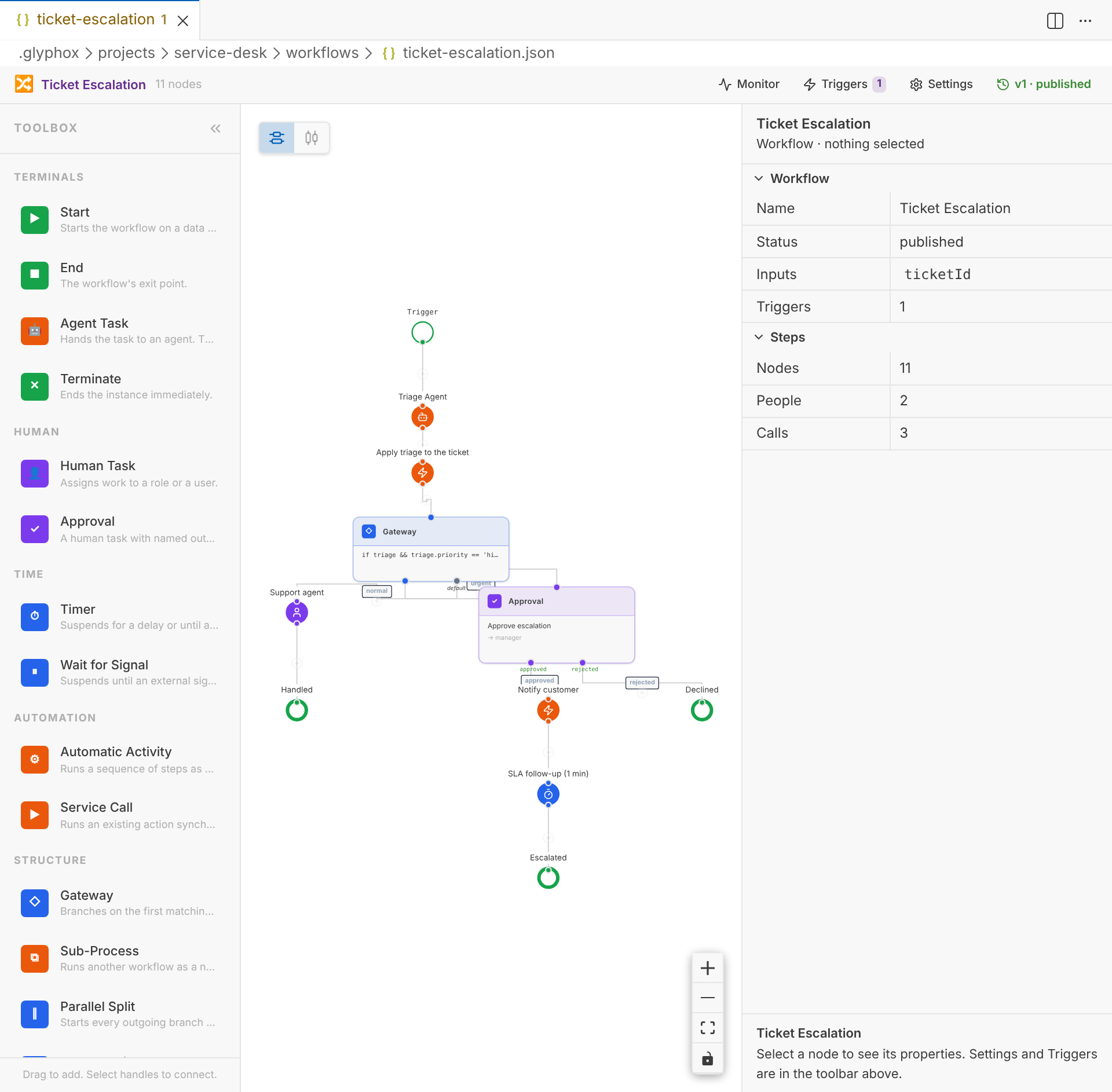
The toolbox groups the nodes as this page does. Drag a node onto the canvas and connect its handles, or drop it onto a connection to insert it there. Most nodes also have a Label, which the canvas shows.
A line leaves a node on the side that faces the node it goes to, bends round any node in its way and ends in an arrowhead at its target. A Gateway's conditions and an Approval's outcomes each leave on the side of their own target, with their captions. A line that returns to an earlier node runs in a lane of its own beside the flow.
A node has one line out for each of its branches, and drawing a second line from the same point replaces the first. A Parallel Split is the exception: every line drawn from it starts a branch. Right-click a node for Cut, Copy, Paste, Duplicate and Delete, and drag on an empty area to select several nodes. The article Logic flows and actions, in this section, describes these in full.
Terminals
| Node | What it does |
|---|---|
| Start | Where the workflow begins. The triggers in the Triggers menu enter here. Set its Label, for example Order received. |
| End | The workflow's exit point. A workflow can have several. |
| Agent Task | Hands the step to an agent. The instance waits while the agent runs and resumes with its result. |
| Terminate | Ends the instance immediately. Its Reason is kept in the instance's audit trail. |
Human
| Node | What it does |
|---|---|
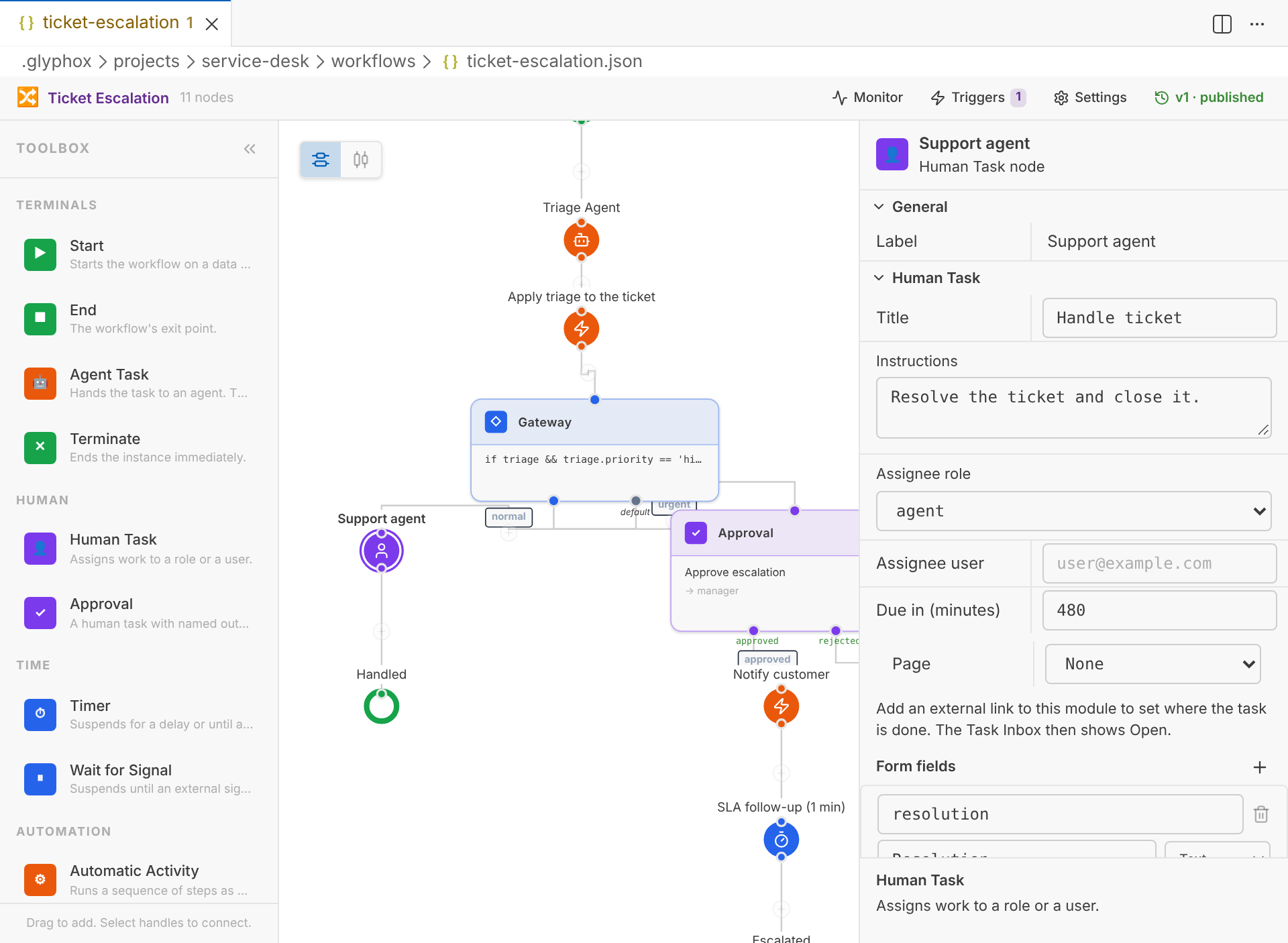
| Human Task | Assigns work to a role or a user and waits until it is completed. |
| Approval | A human task with named outcomes. Each outcome leads along its own connection. |
Time
| Node | What it does |
|---|---|
| Timer | Suspends for a delay or until a time. |
| Wait for Signal | Suspends until the instance receives a signal with the node's Signal name. |
Automation
| Node | What it does |
|---|---|
| Automatic Activity | Runs a sequence of steps as one workflow step. Its server action is created with it, from Properties, and is listed under the workflow. |
| Service Call | Runs an existing action as one step. |
Structure
| Node | What it does |
|---|---|
| Gateway | Branches on the first matching condition. |
| Sub-Process | Runs another workflow as a nested instance and waits for it to finish. |
| Parallel Split | Starts every outgoing branch at once. |
| Parallel Join | Waits for every incoming branch to arrive, then continues as one. |
Human Task and Approval
Agent Task
Service Call and Automatic Activity
Timer and Wait for Signal
Gateway and Sub-Process
Debugging
Select the dot on the left edge of a node, or select the node and press F9, to set a breakpoint. During a run started with F5, the workflow pauses at that step in the VS Code debugger.
Related articles
The Workflow overview, in this section, explains how a workflow starts, waits and escalates. Add an approval step and Add an AI step with sign-off, under How-to guides, build workflows step by step.
If a step fails, see Troubleshoot the first run or contact support.