Documentation / How-to guides
Add a table and generate its pages
Add a table to the data model and generate list, detail and edit pages from it.
Applies to Glyphox 1.0.10
Before you begin
- A solution open in VS Code, with a module that owns data.
Step 1: Open the data model
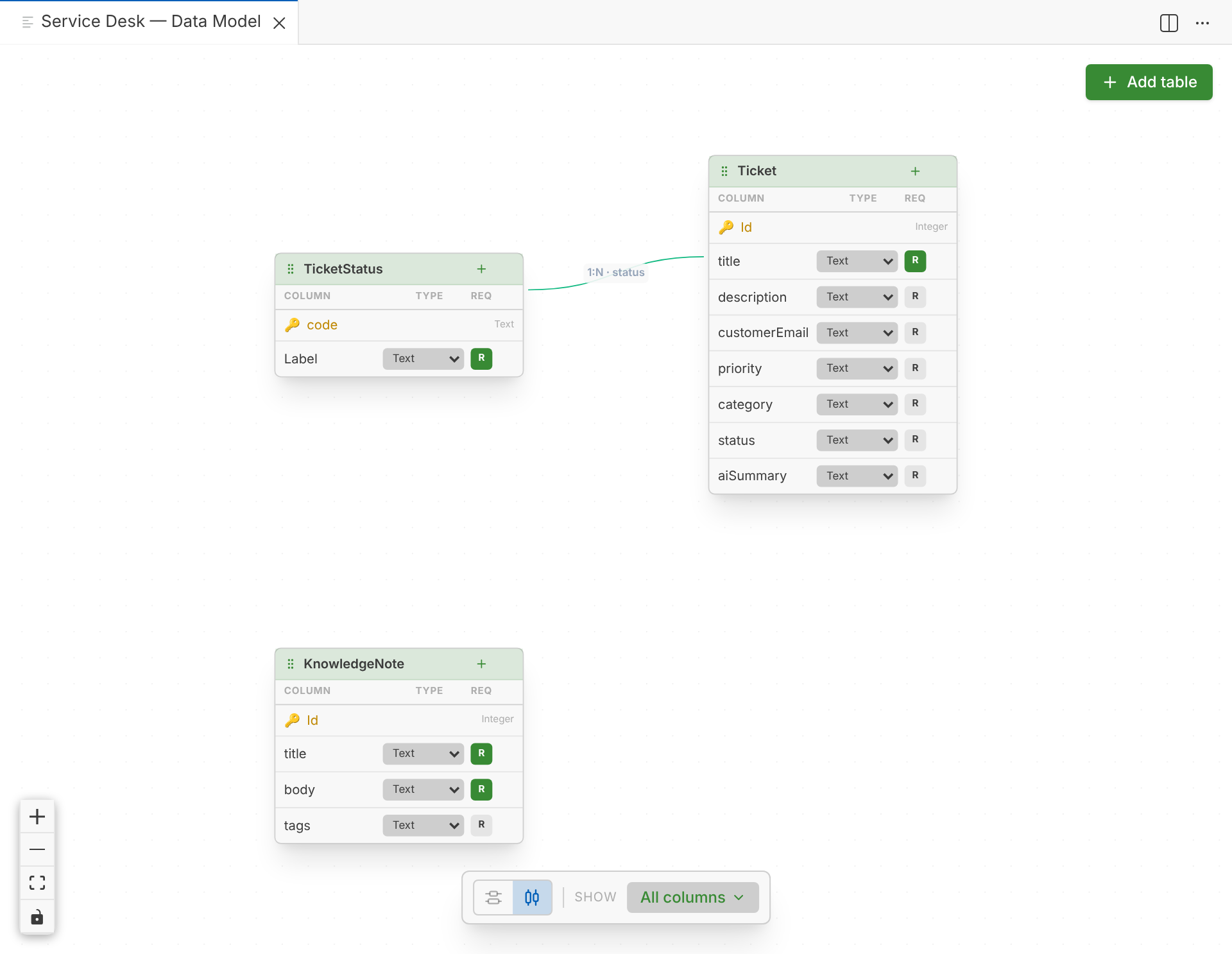
Run Glyphox: Open Data Model, or select Open data model in a table's editor. The diagram shows the module's tables and the relationships between them.
Step 2: Add the table
Add a table on the diagram, run Glyphox: New Table, or ask the Assistant to add one. In the table editor, add its columns and their types, and mark the primary key and any required columns. Renaming a table or a column later updates everything that uses it and keeps its data.
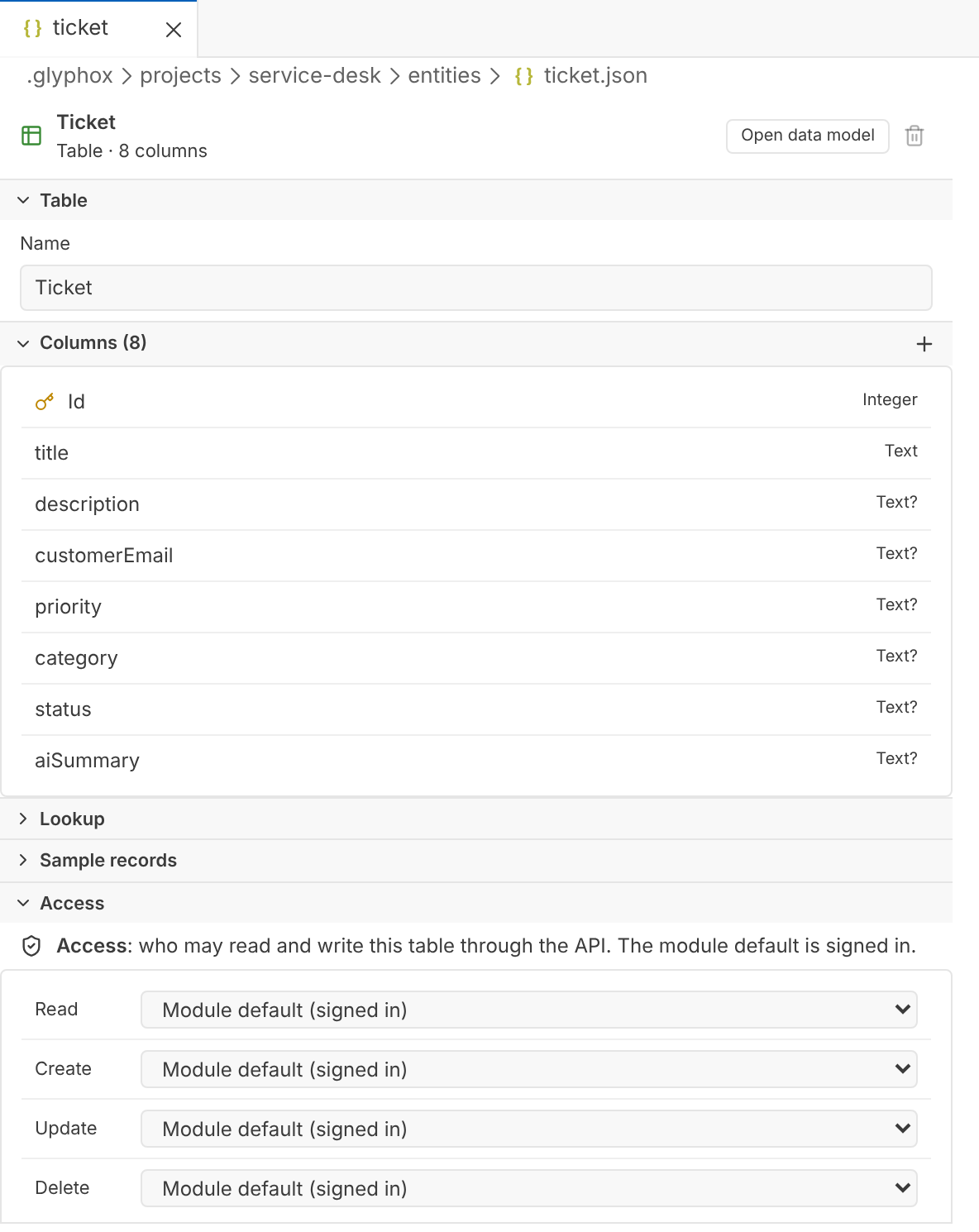
The Access section sets which roles may read, create, update and delete the table's records through the generated API. At the top of the section, Public offers the table to the modules that reference this one and publishes it at its own address. A new table is not public. The article Data API, under Reference, describes a public table.
Step 3: Add its relationships
Relationships between the tables of a module are drawn on the diagram. A one-to-many relationship gives the child table a foreign key column and makes the parent available to queries as a join.
The table editor lists the table's relationships under Relationships, where Add relationship adds one. To change a relationship's type, select the line between the two tables on the diagram.
To delete a table or a relationship on the diagram, right-click it and select Delete. Glyphox first names what uses it, such as the actions that query the table or another module's relationship to it, and deletes nothing until you confirm. Deleting a relationship keeps its key column.
Drag on an empty area of the diagram to select several tables. To move the diagram, scroll, drag with the middle mouse button, or hold Space and drag.
Step 4: Generate its pages
In the Solution tree, open the context menu of the module or its Data group and select Scaffold Pages from Table. Scaffolding generates a list page, a detail page and their actions as a starting point.
The generated pages and actions are ordinary model assets from then on. You can edit, delete or replace them.
Relate a table to another module's table or to users
A table can relate to a public table of a module that its own module references, and to the User table, which holds the application's users. The User table is available in web and service modules without a reference. It holds each user's ID, email and display name, whether the account is active and when it was created.
In the table editor, select Add relationship. Related table lists the tables in groups: This module, then each referenced module with its public tables, such as Billing · Referenced, then Identity · Platform, which holds User and is marked Read-only. Select the table, then select the key column, which stores the other record's key: an existing column of the key's type, or New column…. Select Add relationship.
Solution Settings → Security → Who may read users sets who may read the application's users: Any signed-in user, which is the default, Anyone or Only these roles…. People that the rule leaves out see (not found) where a page shows a user.
A reference cannot be removed while a relationship uses one of its tables. The message names each relationship. Likewise, before a table that another module relates to is made not public or deleted, Glyphox names the relationships that use it.
If a step fails, see Troubleshoot the first run or contact support.