Documentation / Getting started
Make your first change
Change the application by asking the Assistant or by editing the model in a designer.
Applies to Glyphox 1.0.10
Before you begin
- The Acme Service Desk sample, open in VS Code.
Ask the Assistant
Open the Chat view and start your message with @glyphox to work directly with the Assistant. The Assistant works alongside your default agent, such as GitHub Copilot, Claude Code or Codex. Describe the change in a sentence. The Assistant records the requirements for the change, plans it and builds it.
The Assistant has two modes. In Auto, the default, it answers the open questions, approves each stage of the plan and builds from one message, and the record states what it decided. In Manual, you answer the open questions and approve each stage, and the tasks then run without asking. The mode is shown in the status bar, where it can be changed. In both modes, the Assistant asks before it deletes a module or the record of a plan, or changes a deployment environment or setting, and Glyphox: Revert Last Assistant Run reverses the complete run.
The Assistant's model is set in Glyphox Settings → Model. Run Glyphox: Settings to open it.
Advice from the Assistant
The Assistant checks each task that it builds. Its findings on usability, performance and structure are advice: for example, a page with more than one primary action, a query that runs once for each item of a loop, or a calculation that would be clearer as separate steps. The Chat view lists each finding on one line, with the page, or the action and the step, by name, the problem and the fix.
Advice does not hold a task back. The task is verified, and you decide whether to act on each finding.
A task is still held until it is corrected when the result would not work: the model has an error, a page does not render, the generated code is not valid, one of the task's tests fails or an acceptance criterion is not met. A lookup record that is compared as text also holds a task, because the comparison would stop matching when the record is renamed.
Edit the model in a designer
In the Solution tree, select the Ticket List page to open it in the page designer. Select an element on the canvas to edit it in Properties. The page's file is updated as you work.
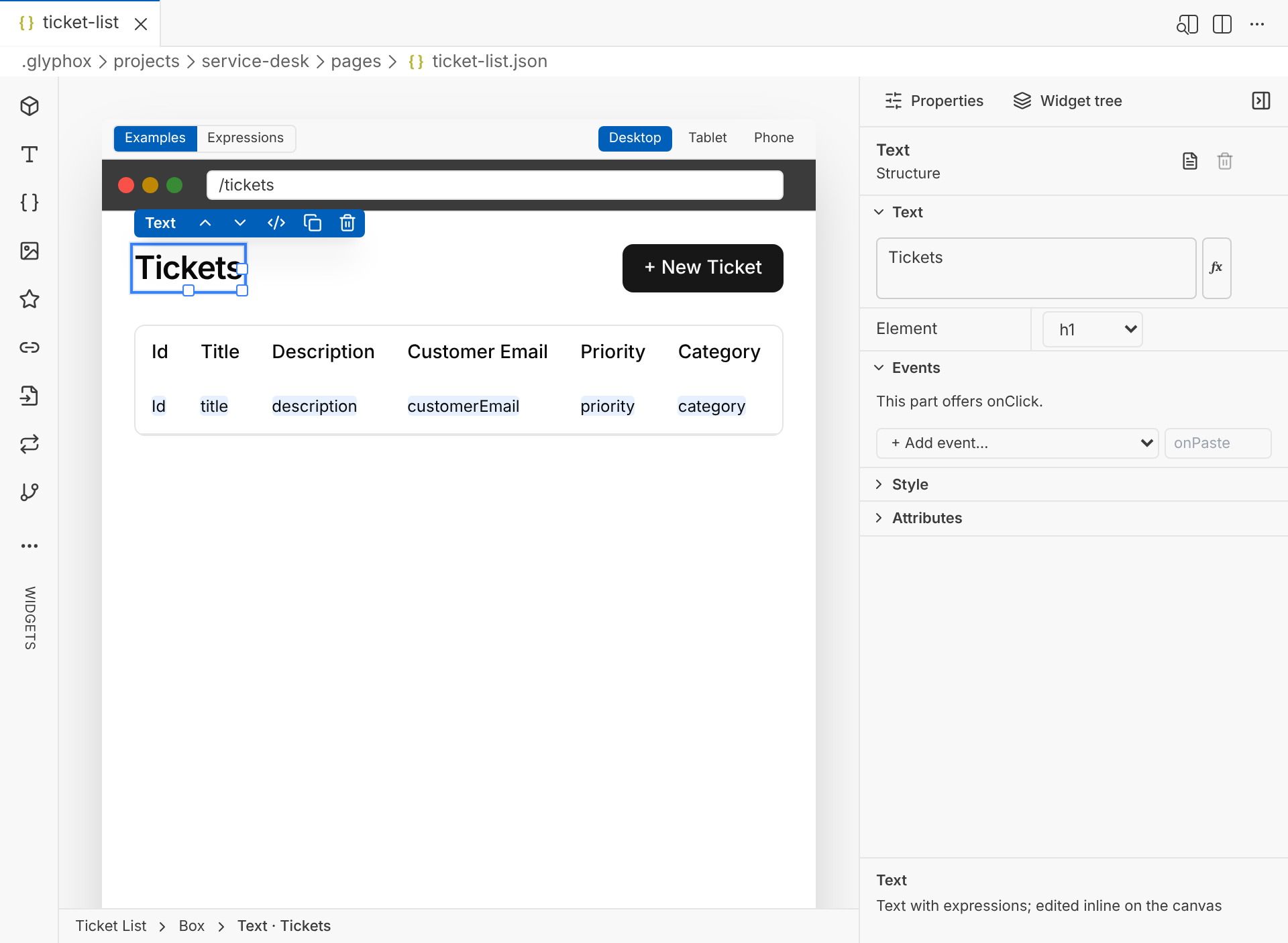
The Assistant and the designers write the same files, so you can alternate between them.
Ask a coding agent
A coding agent or IDE you already use, such as Claude Code, Codex or Cursor, can make the same change with the Assistant's tools. The article Use your own coding agent or IDE, under How-to guides, describes how.
Review the change
In both cases the result is a diff. git diff shows which assets changed, so a model change is reviewed in a pull request in the same way as any other change.
If a step fails, see Troubleshoot the first run or contact support.